PowerPoint® Hot Keys and Helps
While visiting the Granny White congregation in Nashville last month, their AV folks showed me how they were set up to use The Paperless Hymnal® for singings. They had created a different directory and stored songs in it by renaming them to the number in the songbook. I know that several of you have also done about the same thing. I may be wrong, but I think it only works with a two monitor system. I don't recommend you do this unless you have singings where you don't know which songs will be called out. For instance, if you use "Songs of Faith and Praise", then copy "We Praise Thee O God" into the new directory and rename it "2.ppt". Copy "Hallelujah Praise Jehovah" into the new directory and rename it "3.ppt", and so on. When you get to song number 13 "Day is Dying in the West", it is not yet in TPH, but go ahead and create a file with a single slide that says, "In the songbook only #13", or something to that effect. Now, this next part is important - bring up PowerPoint and open the first song from inside PowerPoint. PowerPoint will now default to this directory when you go to open a new file. After you finish singing the first song, press "[ALT] F" then [C] to close the present file, press [ALT] F then [O] (the letter "O"), then enter the song number, press [Enter] twice to open the new file, then press the [F5] key to show the first slide. You should have the first slide showing of the song whose number you entered. If your PC is fairly new, you can have the first slide up and ready before most in the audience can find the song in their book. I would suggest that you not be using the Presenter View when doing this. More about that later.
As I said, I don't recommend doing the above for regular services. You should take the time to put a masterfully thought out song service together. When you have it exactly the way you want it, save it out, and save it to your thumb drive to take to the church building or use whatever means you normally choose to transfer the file, if any. You should at this point print out two copies of the outline view of the presentation. This will give you a slide order printout of the presentation without using up umpteen pages showing pictures of the slides AND it will give the AV person a slide summation of the presentation. What is important about this printout is that it gives you slide numbers. While you are leading your presentation, you can skip to a particular slide if you know it's number. Lets say you know that things are running long and you want to skip the next song. Finish the song you are singing and just tell the AV person to go to the slide where you want to resume the presentation, like at the next prayer, etc. No big deal. To do that, the AV person just enters the slide number and presses [Enter] and you are there, without showing all the slides in-between. This doesn't work in the Presenter View, however.
And speaking of Presenter View, if you are running PowerPoint® 2003 or later, you can turn on Presenter View by going to the Slide Show menu, select Set Up Show and turn on Show Presenter View in the lower right of the window.
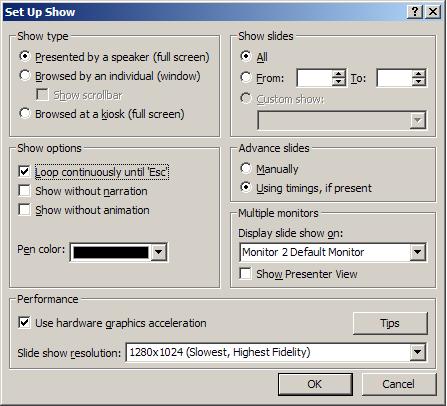
This is also where you set your system up for dual monitors, if you have a second video card and monitor. And this is where you can set up for the native resolution of the projector, which is a good idea. While you are at it, turn the hardware graphics acceleration ON.
With Presenter View now turned on, bring up a PowerPoint file. PowerPoint will load the file then change over to the new Presenter View.

Several things are nice about this view:
1) it is harder to mess up than in regular view,
2) the current slide displaying will stay in the second slot on the left once it is displayed,
3) you can see the next several slides in the file,
4) functions that are usually key actions are now available to the mouse.
One huge disadvantage is the fact that you cannot use many keyboard shortcuts, like the ones we discussed earlier.
But you can give it a try. You might like it better than the full-screen view.